

API Keys
Create and manage API keys for machine-to-machine access to the Granica API.
API keys provide machine-to-machine (M2M) access to the Granica REST API without requiring a user session. Use them to integrate Granica into automated pipelines, CI/CD workflows, and infrastructure tooling.
API keys are managed under Settings → API Keys and are only accessible to users with the Admin role.
How API keys work
Each API key is a long-lived bearer token. Include it in the Authorization header of every API request:
Authorization: Bearer <your-api-key>Keys are displayed once at creation time and cannot be retrieved afterwards — store them securely in a secrets manager or environment variable immediately after creation.
Create an API key
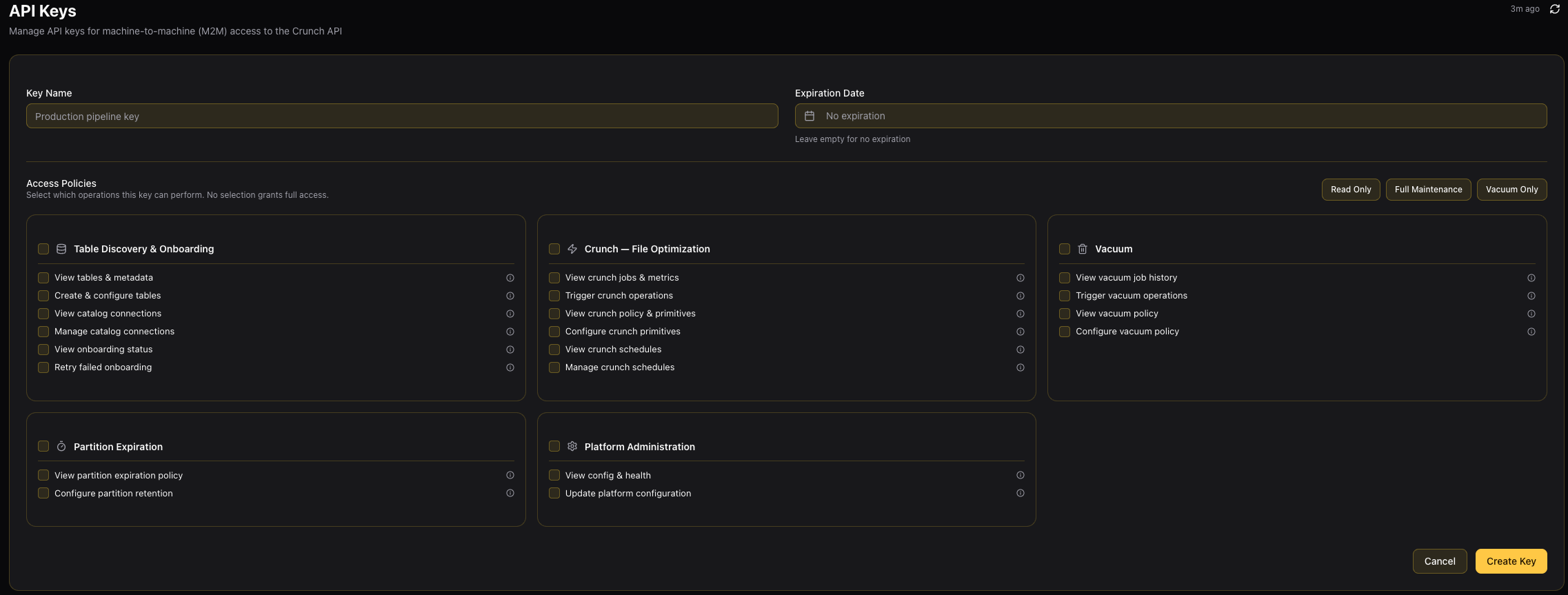
Click + Create API Key to open the creation form inline above the key list.
1. Key Name
Give the key a descriptive name that identifies its purpose and owner, such as Production pipeline key or CI/CD — data quality checks. Good names make it easy to audit and revoke keys later.
2. Expiration Date
Optionally set an expiration date between 1 and 365 days from today. Leave the field empty for a key that never expires. Keys automatically become inactive after their expiration date and can no longer be used to authenticate requests.
3. Access Policies
Access policies control exactly which API operations the key can perform. Permissions are organized into five policy groups — check individual capabilities within each group or select the entire group at once.
If you make no selection, the key is granted full access to all API endpoints.
Quick presets let you apply a standard set of scopes in one click:
| Preset | What it includes |
|---|---|
| Read Only | View everything across all groups — tables, crunch jobs, vacuum history, schedules, policies, and config. No write access. |
| Full Maintenance | Complete table maintenance: crunch, vacuum, partition expiration, and schedule management. Excludes catalog management and platform admin. |
| Vacuum Only | Snapshot expiration and orphan file cleanup — vacuum read, write, and policy scopes only. |
Policy groups and capabilities
Table Discovery & Onboarding
| Capability | Scope key | What it allows |
|---|---|---|
| View tables & metadata | tables:read | List tables, view schema, partitions, and size metrics |
| Create & configure tables | tables:write | Onboard, update, and remove tables |
| View catalog connections | catalog_connections:read | List connections, browse catalogs, schemas, and discovered tables |
| Manage catalog connections | catalog_connections:write | Create, update, delete connections and trigger syncs |
| View onboarding status | onboarding:read | Check progress of table onboarding workflows |
| Retry failed onboarding | onboarding:write | Retry onboarding tasks that have failed |
Crunch — File Optimization
| Capability | Scope key | What it allows |
|---|---|---|
| View crunch jobs & metrics | crunch:read | View job status, execution history, compression metrics |
| Trigger crunch operations | crunch:write | Run on-demand crunch jobs |
| View crunch policy & primitives | crunch_policy:read | View which primitives are enabled and their configuration |
| Configure crunch primitives | crunch_policy:write | Enable/disable and configure Compression, Compaction, Sorting, Clustering, and Deduplication |
| View crunch schedules | schedules:read | View automated crunch schedules |
| Manage crunch schedules | schedules:write | Create, update, and delete crunch schedules |
Vacuum
| Capability | Scope key | What it allows |
|---|---|---|
| View vacuum job history | vacuum:read | View vacuum job status and cleanup metrics |
| Trigger vacuum operations | vacuum:write | Run on-demand vacuum to expire snapshots and delete orphaned files |
| View vacuum policy | vacuum_policy:read | View retention settings and vacuum policy configuration |
| Configure vacuum policy | vacuum_policy:write | Update vacuum retention policy |
Partition Expiration
| Capability | Scope key | What it allows |
|---|---|---|
| View partition expiration policy | partition_exp_policy:read | View partition retention rules |
| Configure partition retention | partition_exp_policy:write | Create and update partition expiration policies |
Platform Administration
| Capability | Scope key | What it allows |
|---|---|---|
| View config & health | config:read | Read platform configuration and health status |
| Update platform configuration | config:write | Modify platform-level configuration settings |
4. Create Key
Click Create Key. The full API key value is shown once in the confirmation panel. Copy it immediately — it cannot be retrieved after you close the panel.
Store your API key in a secrets manager or environment variable. It is shown only once and cannot be retrieved from the Granica Console after creation.
Manage existing keys
The API Keys page lists all keys with their status, access summary, creator, expiration, and last used timestamp.
| Column | Description |
|---|---|
| Name | Key label and the user who created it |
| Key | Key prefix (abc123...) — the full value is never shown again |
| Access | Badge summary of which policy groups the key covers |
| Status | Active, Expired, or Revoked |
| Created | Creation date |
| Expires | Expiration date, or "Never" |
| Last Used | Timestamp of the most recent authenticated request |
Click any row to open the key detail page, which shows the full access policy breakdown and a per-endpoint map of what the key can and cannot call.
Revoke a key
Click the ⋯ Actions menu on any active key row and select Revoke. Revocation is immediate and permanent — any application using that key loses access instantly. Revoked keys cannot be re-activated; create a new key if access needs to be restored.
Using the API key
Pass the key as a Bearer token in the Authorization header:
curl -H "Authorization: Bearer <your-api-key>" \
     https://<your-granica-host>/api/v1/tables
The key is checked against its access policy on every request. If a request targets an endpoint not covered by the key's scopes, it is rejected with 403 Forbidden.
See Granica APIs V1 for the full API reference.
SSO Integration
Configure Single Sign-On (SSO) for the Granica platform using OIDC or SAML 2.0.
Connect Catalogs
Connect your data catalogs to Granica to discover, onboard, and manage tables for automated optimization.