

Get started
Step-by-step guides for Administrators and Users getting started with Granica Crunch.
For Administrators
This guide walks a newly onboarded administrator through setting up Granica Crunch for your organization — from first login to enabling your team to start optimizing tables.
1. First login and password change
When your Granica instance is provisioned, a member of your team is designated as the initial administrator and is given a username and temporary password. On first login, you will be prompted to change your password.
As the initial administrator, it is your responsibility to:
- Secure your account with a strong password.
- Add additional administrators to share platform management responsibilities (see Step 3).
2. Set up SSO integration (recommended)
Before onboarding additional users, configure Single Sign-On (SSO) so that your team can authenticate using your organization's identity provider (IdP). SSO is a prerequisite if you plan to invite users or administrators without issuing individual passwords.
Granica supports OIDC and SAML 2.0 providers (Okta, Azure AD, Google Workspace, and others).
See SSO Integration for setup instructions.
If you skip SSO, you can still add users with local username/password credentials. SSO is required to allow users to authenticate via your IdP.
3. Manage users and add administrators
Once SSO is configured (or if you are using local accounts), add the rest of your team. You can assign each user the Viewer, Editor, or Admin role.
- To delegate platform management, assign the Admin role to additional team members.
- For data users who will set optimization policies, assign the Editor role.
- For read-only access to dashboards and reports, assign the Viewer role.
See Manage Users and Role-Based Access Control for details.
4. Connect catalogs
Connect Granica to your data catalog so that it can discover and sync your tables. This is a prerequisite for users to view tables in Table Maintenance and set optimization policies.
Granica supports Unity Catalog (Databricks), Hive Metastore, and Apache Polaris. After connecting a catalog, Granica syncs all eligible tables (0.1 GB and above) and makes them available in Table Maintenance.
See Connect Catalogs for setup instructions.
5. Connect object stores (optional)
If your organization has data that lives outside any catalog — raw Parquet dumps, JSON event files, or unregistered object store prefixes — connect those locations so Granica can manage them in Object Maintenance.
This step is a prerequisite for running Crunch on object prefixes that are not covered by a connected catalog.
See Connect Object Stores for setup instructions.
6. Connect query history (optional)
Connect your query engine's log output (Trino, Spark, or Athena) to unlock query-aware optimization insights in Table Maintenance:
- Est. time saved/mo — an estimated total query time reduction per table, projected over 30 days, based on your actual query workload.
- Query Acceleration recommendations — clustering and Z-ordering suggestions derived from your most frequent query predicate patterns, showing which column combinations are hit most often and the projected speedup if applied.
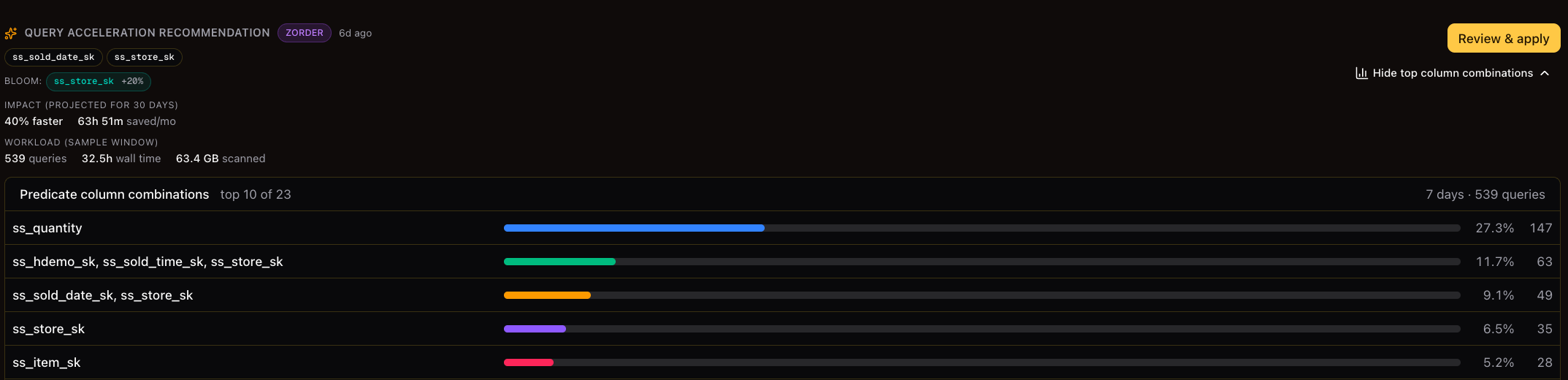
Without query history, Crunch still optimizes storage — but these workload-aware insights and the Query Acceleration column on the table list will not be populated.
See Connect Query History for setup instructions.
For Users
Once your administrator has connected catalogs and set up your account, you can start optimizing tables. This guide walks through the typical workflow.
1. Find the tables you want to optimize
Navigate to Table Maintenance in the sidebar. The table list shows all tables synced from your connected catalogs, along with their size, format, current optimization status, and estimated savings.
Use the filters and search to narrow down the list:
- Sort by size to find your largest tables first — these typically yield the most savings.
- Filter by catalog, schema, or table type (Iceberg, Delta Lake, Hive).
- Use the search bar to find a table by name.
See Tour of the Granica Console for a full walkthrough of the table list.
2. Estimate the Data Reduction Rate (DRR)
Before committing to a Crunch policy, evaluate a table's optimization potential by collecting metadata. Open the table detail page and click Collect Metadata.
Granica analyzes the table's files and partitions and computes the Estimated DRR — the projected percentage of storage that Crunch can save for this table. This step typically takes a few minutes depending on table size.
Use the Est. DRR to prioritize which tables to onboard first. A higher DRR means more immediate storage savings.
3. Crunch the table
If the estimated DRR looks good, you have two options — use one or both depending on your needs:
Set a recurring policy — for ongoing optimization of newly arrived partitions. Configure a daily or weekly schedule, the partition date range to process, and the optimization primitives (compression, deduplication, compaction). The policy runs automatically on the configured schedule going forward.
Trigger a one-time run — for crunching existing historical partitions. Go to the Actions tab on the table detail page, click New Run, set the partition date range, and submit. The job is queued immediately.
Most teams do both: a one-time backfill run to optimize historical data, and a recurring policy to keep new partitions optimized as they arrive.
See Tour of the Granica Console for step-by-step policy configuration details.
4. Monitor progress
After submitting a run or enabling a policy, check back in the Activities section of Monitoring to track job status. The activity log shows each run's status (queued, running, succeeded, or failed), the partitions processed, and the bytes saved.
Once a run completes, the table's DRR and storage savings appear in the Table Maintenance list and on the Overview dashboard.
Tour of the Granica Console
A guided tour of the Granica Console's two primary workspaces — Table Maintenance for catalog-registered tables, and Object Maintenance for raw object store prefixes.
Start a Crunch pilot
Experience the savings potential of Crunch using a sample of your data.