

Connect Catalogs
Connect your data catalogs to Granica to discover, onboard, and manage tables for automated optimization.
Catalog Connections is how Granica discovers the tables in your data lakehouse. Once a catalog is connected, Granica continuously syncs table metadata and makes those tables available for compaction, compression, vacuum, partition expiration, and query acceleration policies.
Connecting a catalog does not automatically give Crunch access to the actual data. Customers need to work with their data platform and storage team to make sure that the Crunch IAM role (typically named something like granica-worker-xyz; find the exact role name in your Terraform output, see Deploy the admin server) has full read and write access, including listing and head operations, to the S3 bucket(s) associated with the catalog.
Supported catalogs
Granica supports the following catalog types today, with more on the way.
Unity Catalog (Databricks)
Connect Granica to a Databricks workspace via a service principal. Granica integrates with Unity Catalog to discover all catalogs, schemas, and tables in the workspace.
Required credentials:
| Field | Description |
|---|---|
| Workspace URL | Your Databricks workspace URL, e.g. https://workspace.cloud.databricks.com |
| Client ID | Service principal client ID |
| Client Secret | Service principal client secret |
After providing credentials, click Test Connection to discover available catalogs, then select the catalog you want to manage.
Hive Metastore (HMS / Iceberg)
Connect Granica to a Hive Metastore for HMS-managed tables, including Apache Iceberg tables registered in HMS. This covers self-managed Hive deployments as well as managed HMS instances (e.g. Amazon EMR, CDH).
HMS endpoint is often private to your network. Make sure Granica can reach it, and work with your network admin if needed.
Required credentials:
| Field | Description |
|---|---|
| Metastore URI | Thrift URI of the Hive Metastore, e.g. thrift://10.123.64.35:9083 |
| Username | Metastore username (if authentication is enabled) |
| Password | Metastore password (if authentication is enabled) |
Polaris
Granica supports Apache Polaris as a catalog source for Iceberg tables managed via the Polaris REST catalog API.
Required credentials:
| Field | Description |
|---|---|
| Catalog URL | Polaris REST catalog endpoint |
| Client ID | OAuth2 client ID for Polaris access |
| Client Secret | OAuth2 client secret |
Snowflake Horizon Catalog
Connect Granica to Snowflake Horizon Catalog to discover Snowflake-managed Iceberg tables stored on Amazon S3. Granica connects through Horizon's Iceberg REST catalog endpoint, so select Iceberg REST / Polaris as the catalog type when adding the connection.
Work with your Snowflake administrator before connecting. The external volume behind your Iceberg tables must allow writes (ALLOW_WRITES = TRUE), the integration role must have read and write access to the tables, and the table owner must retain USAGE on the external volume.
Confirm that the external volume is writable:
DESC EXTERNAL VOLUME <EXTERNAL_VOLUME>;
SELECT SYSTEM$VERIFY_EXTERNAL_VOLUME('<EXTERNAL_VOLUME>');
Required credentials:
| Field | Description |
|---|---|
| Polaris / REST URL | Horizon REST catalog endpoint, https://<ACCOUNT>.snowflakecomputing.com/polaris/api/catalog, where <ACCOUNT> is your Snowflake organization and account identifier |
| Default Catalog | The Snowflake database that contains your Iceberg tables. This is the database, not the compute warehouse. |
| OAuth Scope | session:role:<ROLE>, where <ROLE> is the Snowflake integration role |
| Client Secret | A current service-user JWT generated through Snowflake key-pair authentication |
| Client ID | Leave empty. Horizon authenticates with the JWT alone. |
After providing credentials, click Test Connection and confirm that the schemas you expect are listed.
The service-user JWT is short-lived. When it expires, edit the connection to provide a fresh JWT, then test the connection again.
Create one connection per Snowflake database. If a connection already exists for the database, reuse it rather than adding a second one.
If a table is missing after a sync, check the role's grants, the database and schema, and the table size threshold.
Coming soon
Granica is actively expanding catalog support. AWS Glue is next on the roadmap, enabling discovery of tables registered in the AWS Glue Data Catalog across S3-backed lakehouses. Additional catalogs will follow.
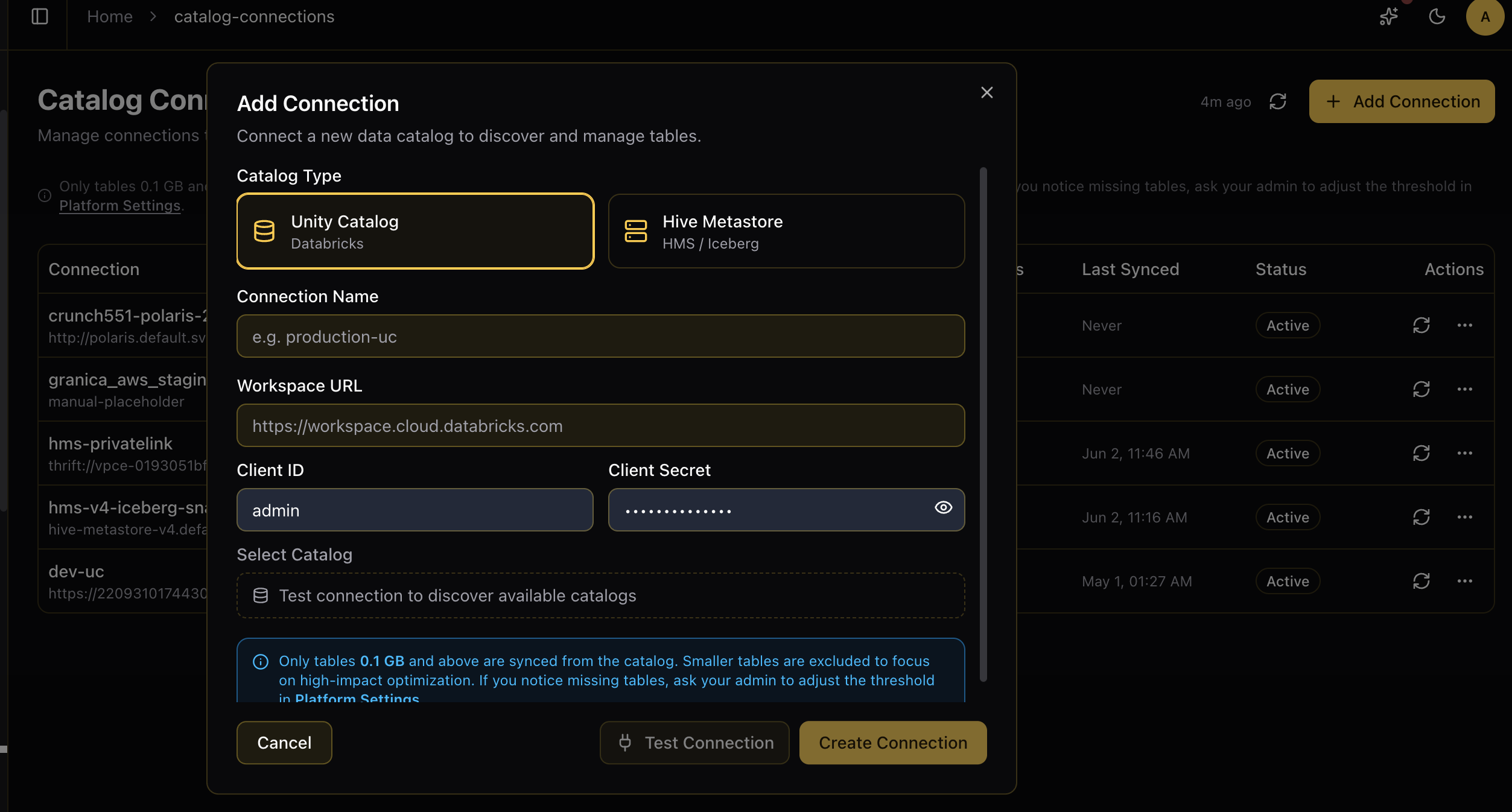
Add a connection
- Navigate to Catalog Connections in the Granica Console sidebar.
- Click + Add Connection.
- Select your Catalog Type (Unity Catalog, Hive Metastore, or Iceberg REST / Polaris, which covers both Polaris and Snowflake Horizon Catalog).
- Enter a Connection Name — a friendly label used to identify this connection in the console.
- Fill in the catalog-specific credentials (see above).
- Click Test Connection to verify credentials and discover available catalogs.
- Select the catalog to sync (Unity Catalog only — HMS syncs all available databases).
- Click Create Connection.
Granica immediately begins an initial metadata sync. Depending on the size of your catalog, this may take a few minutes.
Table sync and eligibility
Only tables 0.1 GB and above are synced from the catalog by default. Smaller tables are excluded to focus optimization on high-impact workloads. If tables you expect to see are missing, ask your admin to adjust the threshold in Platform Configuration.
Synced tables appear in Table Maintenance, where you can onboard them for automated optimization.
Manage connections
From the Catalog Connections page you can:
- Sync — Trigger a manual metadata sync for a connection to pick up newly added tables.
- Edit — Update connection credentials or settings.
- Delete — Remove a connection. This cascades to all synced table metadata. Managed tables with active policies are flagged before deletion.
Each connection shows its sync status (idle, running, completed, or failed), the last synced timestamp, and whether the connection is Active or Inactive.
API Keys
Create and manage API keys for machine-to-machine access to the Granica API.
Manage Users
Add, edit, and manage user accounts and roles in the Granica Console.