

Manage Users
Add, edit, and manage user accounts and roles in the Granica Console.
The User Management page is where Admins create user accounts, assign roles, and control access to the Granica Console. It is available under Settings → User Management and is only accessible to users with the Admin role.
User table
The user list displays all accounts in your Granica deployment. Each row shows:
| Column | Description |
|---|---|
| User | Full name and email address |
| Username | Login identifier |
| Role | Assigned role: Viewer, Editor, or Admin |
| Status | Active or Inactive |
| Auth Type | How the user authenticates: Password, OIDC, or SAML 2.0 |
| Last Login | Timestamp of the most recent successful sign-in |
Add a user
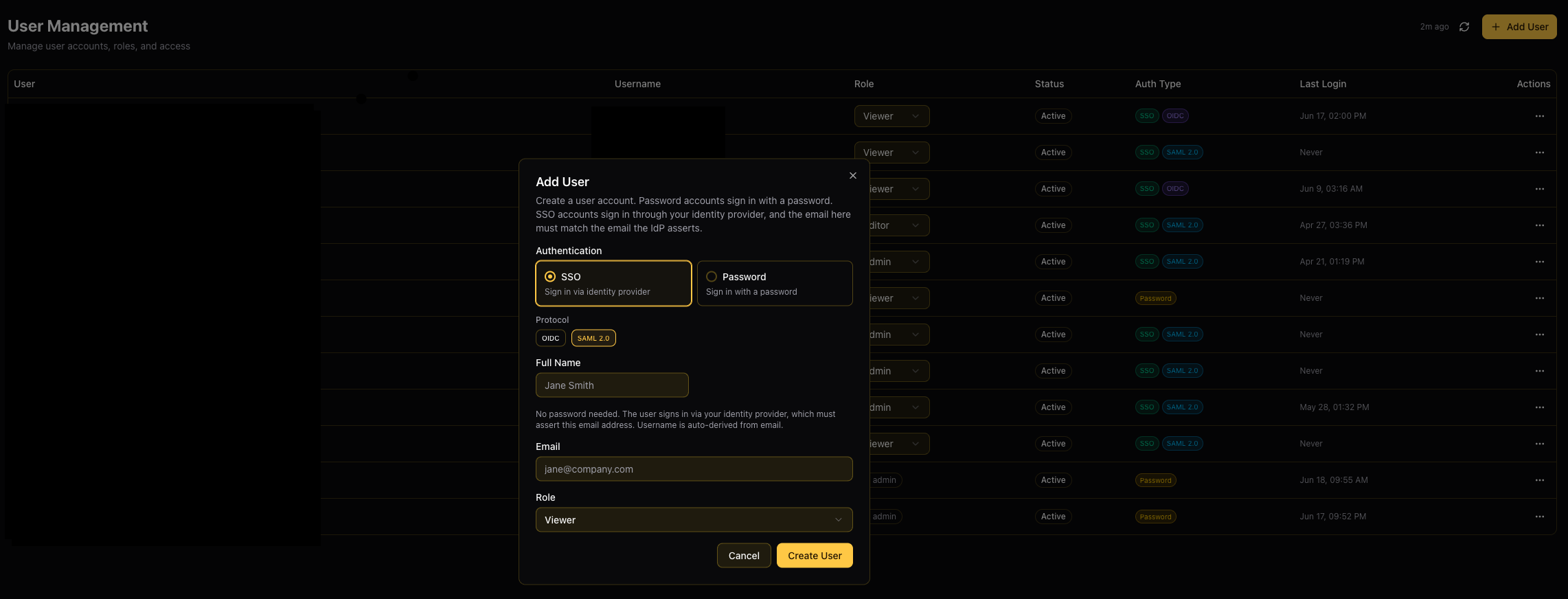
Click + Add User in the top-right corner to open the Add User dialog. There are two account types depending on how the user will authenticate.
SSO users (identity provider)
Choose SSO when the user will sign in via your organization's identity provider (Okta, Microsoft Entra ID, Google Workspace, etc.). SSO must be configured before creating SSO accounts — see SSO Integration.
- Select SSO as the authentication type.
- Choose the protocol: OIDC or SAML 2.0 (the protocol your IdP is configured with).
- Enter the user's Full Name.
- Enter the user's Email address. This must exactly match the email address that the identity provider asserts during login. The username is automatically derived from the email local-part.
- Select a Role (Viewer, Editor, or Admin).
- Click Create User.
The user can immediately sign in via your identity provider using that email address. No password is set or required.
Bulk add SSO users from a CSV
When SSO is configured, the Add User dialog shows an Add One / Upload CSV toggle. Use Upload CSV to create many SSO accounts at once instead of adding them one at a time.
CSV upload is only available for SSO accounts. It is not offered for password accounts, so the toggle does not appear when the authentication type is set to Password.
- Select SSO as the authentication type and choose the protocol (OIDC or SAML 2.0). The selected protocol applies to every user in the file.
- Click Upload CSV.
- Select a Role. The chosen role is applied to all users in the file.
- Click the upload area and choose your
.csvfile. - Click Create User to process the file.
CSV format — the first row must be a header row containing full_name and email columns (column order does not matter, and other columns are ignored):
full_name,email
Jane Smith,jane@company.com
Ravi Patel,ravi@company.com
For each row, the username is automatically derived from the email local-part, and the account is created with the role and protocol selected in the dialog.
After processing, the dialog reports how many accounts were added and lists any rows that failed with the reason (for example, a duplicate email). Successful rows are still created even when some rows in the same file fail, so you can fix the listed rows and re-upload just those.
Password users (local credentials)
Choose Password when the user will sign in with a username and password managed directly by Granica. This is useful for service accounts, break-glass users, or environments without SSO.
- Select Password as the authentication type.
- Enter the user's Full Name.
- Enter a Username — this is the login identifier and cannot be changed after creation.
- Enter the user's Email address.
- Enter an initial Password. The user can change it after their first login.
- Select a Role (Viewer, Editor, or Admin).
- Click Create User.
When SSO is configured, the dialog defaults to SSO authentication. Password authentication remains available as a fallback and is the only option when no SSO protocol has been configured.
Assign and change roles
The user's role is set when the account is created. To change it later:
- Find the user in the user table.
- Click the role badge (e.g., Viewer) in the Role column.
- Select the new role from the dropdown.
The change takes effect immediately on the user's next request. See Role-Based Access Control for a full description of what each role can do.
Edit a user
Click the ⋯ (Actions) menu on any user row to access management options:
| Action | Description |
|---|---|
| Edit | Update the user's full name, email, or role |
| Reset Password | Set a new password (password accounts only) |
| Deactivate / Activate | Toggle the user's active status. Deactivated users cannot log in but the account is retained. |
| Delete | Permanently remove the user account. This action cannot be undone. |
Deleting a user is permanent. If you need to temporarily revoke access, use Deactivate instead — the account and its history are preserved and can be reactivated later.
Protected accounts
The built-in admin and granica-admin accounts are marked as protected and cannot be deleted or deactivated through the UI. The granica-admin account serves as a break-glass login and is exempt from SSO enforcement. See SSO Integration for details.
Connect Catalogs
Connect your data catalogs to Granica to discover, onboard, and manage tables for automated optimization.
Monitoring Platform
Overview of the dashboards and reports available in the Granica Console for tracking optimization activity, platform health, and cost savings.