

Tour of the Granica Console
A guided tour of the Granica Console's two primary workspaces — Table Maintenance for catalog-registered tables, and Object Maintenance for raw object store prefixes.
The Granica Console is the central interface for discovering, onboarding, and managing the optimization of your lakehouse data. This tour covers the two primary workspaces: Table Maintenance, for tables registered in your data catalogs, and Object Maintenance, for raw object store prefixes that live outside any catalog.
Table Maintenance
Table Maintenance is where you view all tables synced from your connected catalogs, configure optimization policies, monitor progress, and trigger one-time runs.
See all tables, filter, search, and inspect metadata
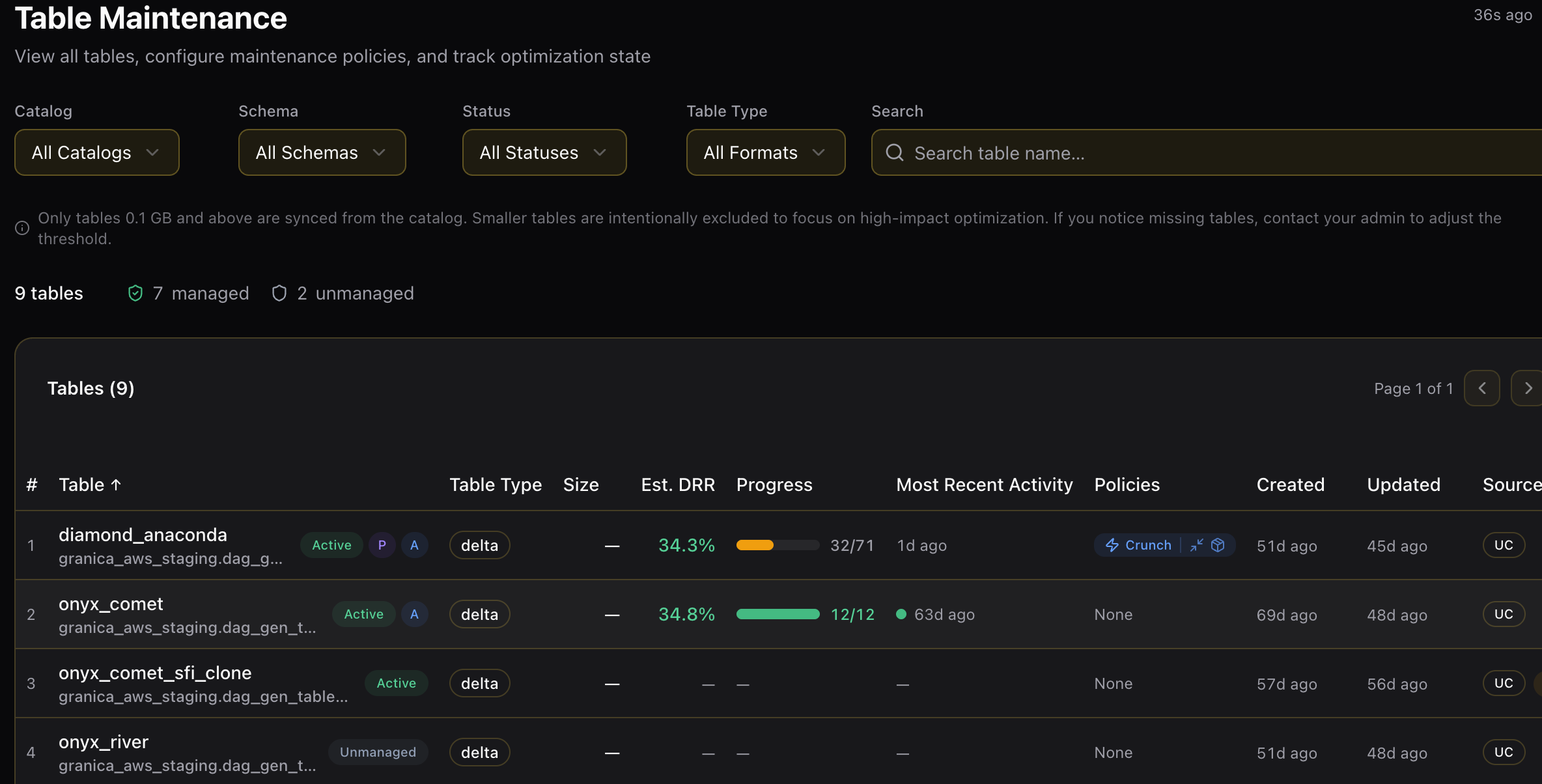
Navigate to Table Maintenance from the sidebar. The page shows all tables synced from your connected catalogs, with a summary of how many are managed (have an active policy) versus unmanaged.
Only tables 0.1 GB and above are synced from the catalog. Smaller tables are intentionally excluded to focus optimization on high-impact workloads. If you notice missing tables, an Admin can adjust the threshold in Platform Configuration.
Use the filters at the top to narrow the list:
| Filter | Description |
|---|---|
| Catalog | Filter to tables from a specific connected catalog |
| Schema | Narrow to a specific database or schema within the catalog |
| Status | Show only Managed, Unmanaged, Active, or tables with a specific job state |
| Table Type | Filter by format — Iceberg, Delta Lake, or Hive |
| Search | Free-text search by table name |
Each row in the table list shows the table name, its full catalog path, table type, current size, estimated DRR, optimization progress (partitions processed out of total), most recent activity timestamp, active policies, and the catalog source.
Click any row to open the table detail page.
Evaluate a table with "Collect Metadata"
Before setting a policy on a new table, you can evaluate its optimization potential by collecting metadata. On the table detail page, click Collect Metadata to trigger a metadata collection job.
Granica analyzes the table's files and partitions and computes the Estimated DRR (Data Reduction Ratio) — the projected percentage of storage that Crunch can save for this table. Once metadata collection completes, the Est. DRR column on the table list populates with the result.
Use Est. DRR to prioritize which tables to onboard first. Tables with higher estimated DRR will yield the most immediate storage savings.
Set policies to schedule compaction and compression
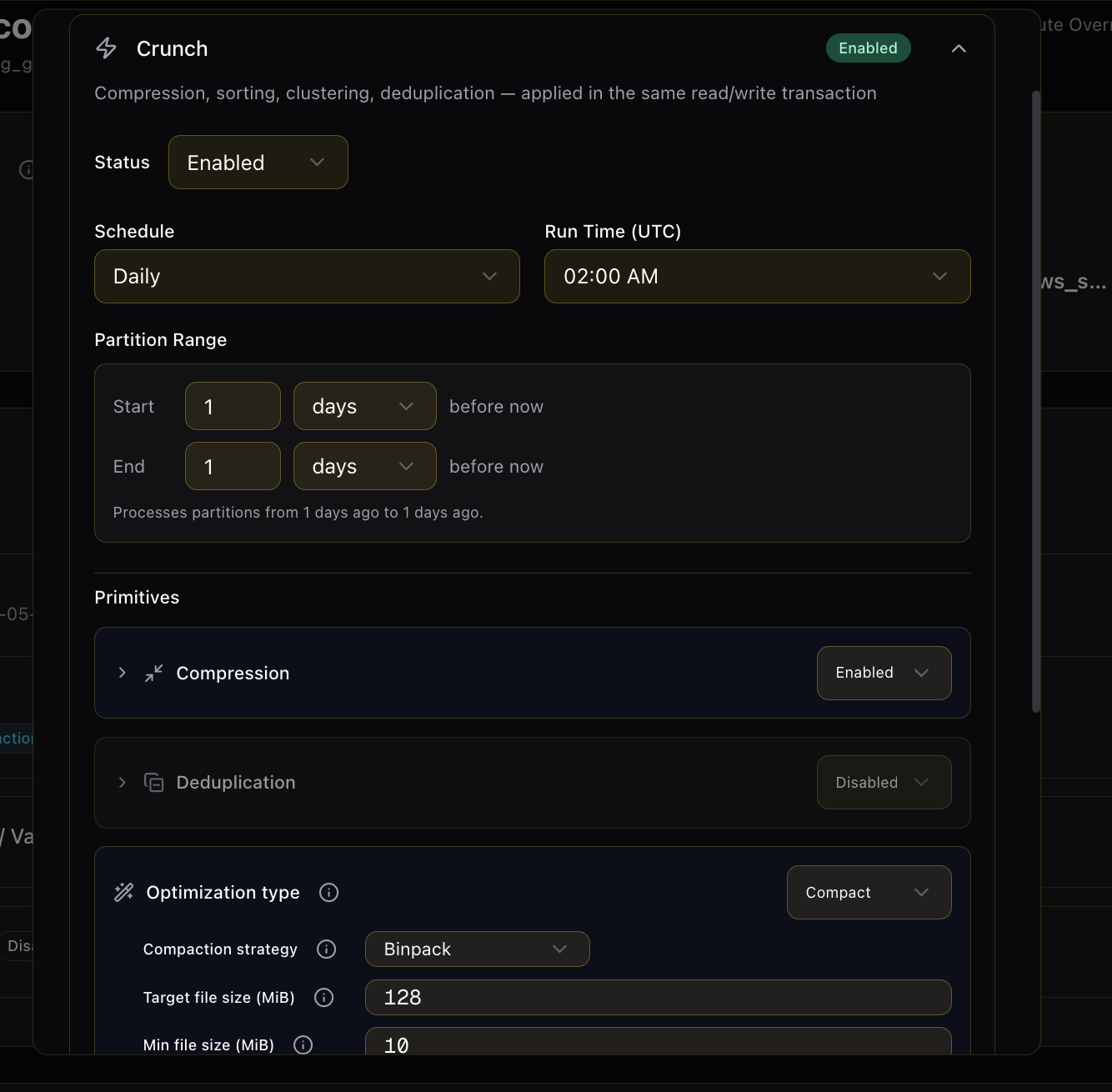
On the table detail page, the Policy panel lets you configure automated optimization schedules. Policies control when Crunch runs, what partitions it processes, and which optimization primitives it applies.
To configure a Crunch policy:
- Open the Crunch policy section and set Status to Enabled.
- Set the Schedule (Daily or Weekly) and Run Time (UTC) — when the job should start each day.
- Set the Partition Range — which date partitions to process. For example, Start: 1 day before now and End: 1 day before now processes yesterday's partitions on each run.
- Configure Primitives — the individual optimization operations to apply:
- Compression — Recompresses files using Granica's adaptive compression engine for maximum data reduction.
- Deduplication — Removes duplicate rows within a partition based on configured key columns.
- Optimization Type — Controls compaction behavior. The Compact strategy uses Binpack compaction to consolidate small files into target-sized files. Configure the Target file size (default 128 MiB) and Min file size to skip already-efficient files.
- Click Save to activate the policy.
Once saved, Granica schedules the first run according to the configured time and partition range. Policy changes take effect on the next scheduled run.
Additional policy types available on the table detail page:
- Vacuum — Expire old snapshots and delete orphaned files to reclaim storage (Iceberg and Delta Lake).
- Partition Expiration — Automatically drop partitions older than a configured retention window.
Trigger a one-time run (backfill)
To process a specific date range outside the normal schedule — for example, to backfill historical partitions or re-crunch a range after a policy change — use the Actions tab on the table detail page.
Click New Run, select the job type (Crunch, Vacuum, or Partition Expiration), set the start and end dates for the partition range, and submit. The run is queued immediately and appears in the activity log. One-time runs are independent of the policy schedule and do not affect future scheduled runs.
Query Acceleration
Query Acceleration is built directly into Table Maintenance — there is no separate page. When you connect your query engine's logs (see Connect Query History), Granica profiles your real query patterns and surfaces workload-aware recommendations alongside each table.
- Est. time saved / mo — a column on the table list estimating the monthly query time each table's recommendation would save, so you can prioritize the highest-impact tables.
- Query Acceleration recommendation card — on a table's detail page, a card showing the suggested layout change (such as a sort key or Z-order over the most frequently queried columns) and its projected speedup.
- Applied indicator — once a table's latest recommendation has been applied, the row shows an Applied pill so you can tell at a glance which tables are already optimized for their workload.
Query Acceleration recommendations require a Query History connection. Without query history, Crunch still optimizes storage, but the Est. time saved column and recommendation cards remain empty.
Object Maintenance
Object Maintenance surfaces the prefixes discovered from your registered Object Locations and applies the same optimization capabilities to data that lives outside your catalogs — raw JSON event files, unregistered Parquet dumps, and any object store prefixes not claimed by a connected catalog.
Set policies on a prefix
Open a discovered prefix from the Object Maintenance page to access its policy configuration. The policy panel works the same way as Table Maintenance:
- Enable Crunch and configure the schedule, run time, and partition range.
- Select which primitives to apply: Compression, Deduplication, and compaction strategy.
- Save the policy to start automated background optimization on the prefix.
Policies on object prefixes follow the same scheduling model as table policies — Granica runs the configured job at the specified time and processes the configured partition range on each run.
Trigger a one-time action
The Actions tab on any object prefix detail page lets you trigger a one-time Crunch run on a specific date range, independent of the configured schedule. Set the start and end dates for the backfill range and submit — the run is queued immediately and tracked in the activity log alongside scheduled runs.
Crunch compatibility
Supported platforms and file formats for Granica Crunch.
Get started
Step-by-step guides for Administrators and Users getting started with Granica Crunch.